The gear in the dock opens Settings. Every setting here is also an entity on the device in
Home Assistant unless the table says otherwise, and a change in either place shows up in the other.
Settings that only exist in Home Assistant are on Settings in Home Assistant.
The Entity column is the entity id Home Assistant gives it by default, with <device> standing for
your device’s name. “—” means the setting is only on the screen.
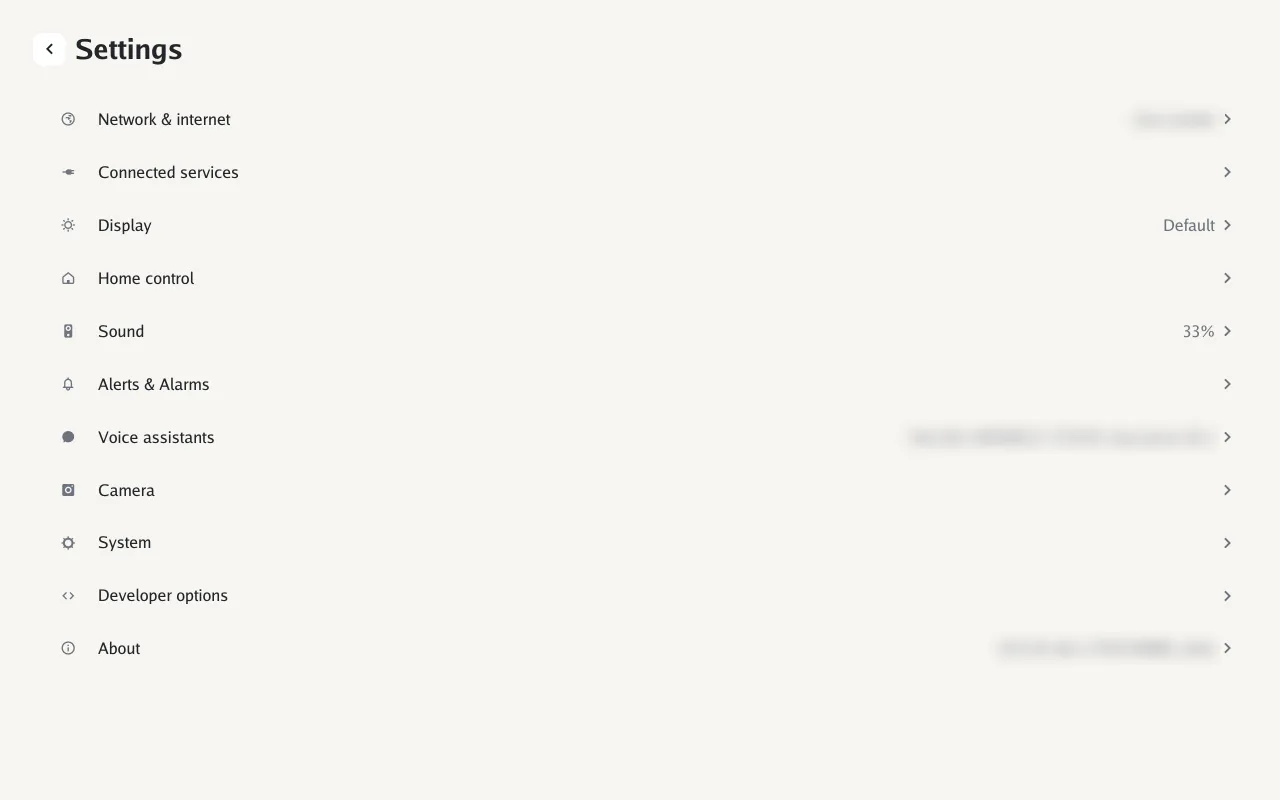
The Wi‑Fi network, IP and MAC address, router and DHCP lease, all read-only. Change networks with
./echolocal wifi.
| Setting |
What it does |
Default |
Entity |
| Web access → |
The address of the web page, the admin password, and the certificate in use |
|
text.<device>_frontend_admin_password, sensor.<device>_frontend_certificate |
| Verify certificates |
Check TLS certificates on downloads: updates, wake words, photos, radar |
On |
switch.<device>_verify_certificates |
| Setting |
What it does |
Default |
Entity |
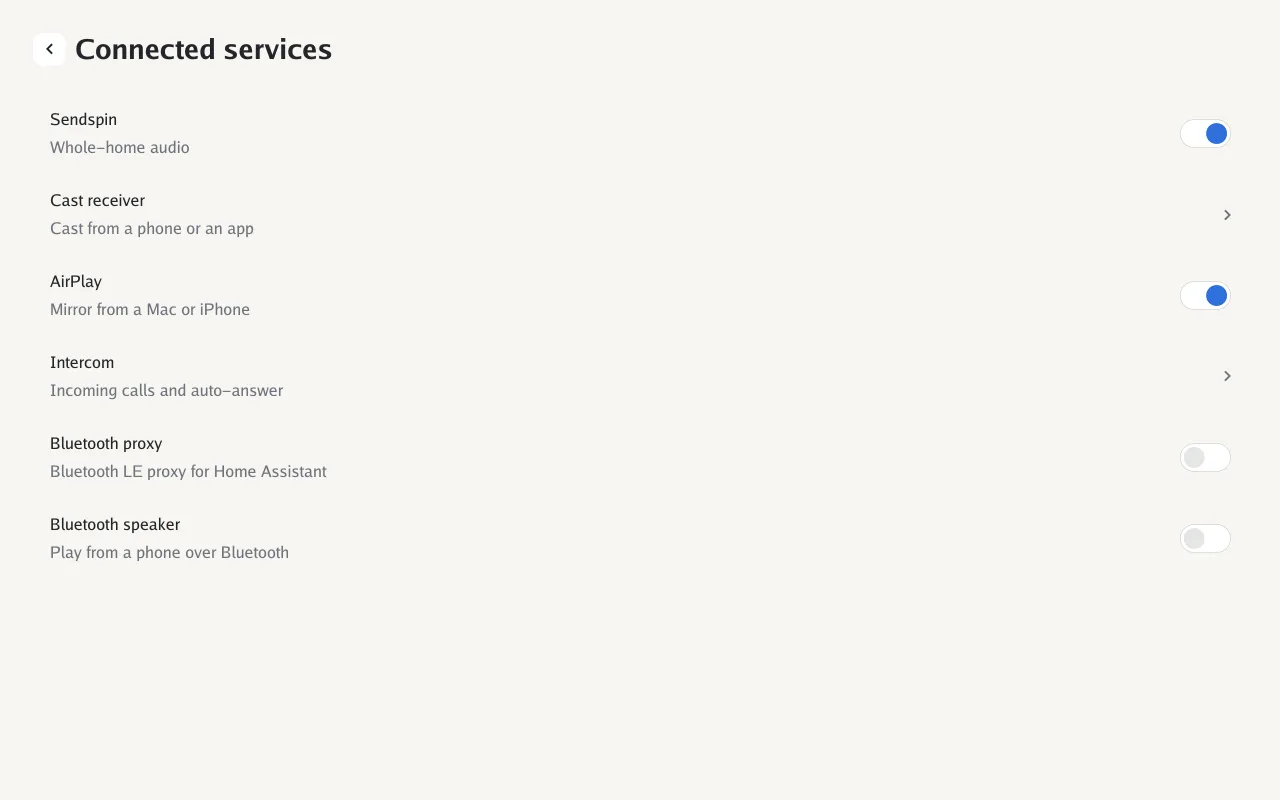
| Sendspin |
A Music Assistant player for whole-home audio |
Off |
switch.<device>_playback_sendspin |
| Cast receiver → |
Chromecast, with a page per app (below) |
Off |
switch.<device>_playback_cast_receiver |
| AirPlay |
Mirror the screen and sound from a Mac, iPhone or iPad (Music and casting) |
Off |
switch.<device>_playback_airplay |
| Intercom → |
Calls with other devices (below) |
|
|
| Bluetooth proxy |
A Bluetooth LE proxy for Home Assistant |
Off |
switch.<device>_bluetooth_proxy |
| Bluetooth speaker |
Play from a phone over Bluetooth |
Off |
switch.<device>_bluetooth_speaker |
| Camera stream → |
RTSP and ONVIF, with a username and password (below) |
Off |
switch.<device>_camera_rtsp_server |
| Setting |
What it does |
Default |
Entity |
| RTSP server |
Serve the camera over RTSP and ONVIF (Camera) |
Off |
switch.<device>_camera_rtsp_server |
| Username |
Asked for along with the password |
admin |
text.<device>_camera_rtsp_username |
| Password |
Empty means no password. Shows Set once there is one |
|
text.<device>_camera_rtsp_password |
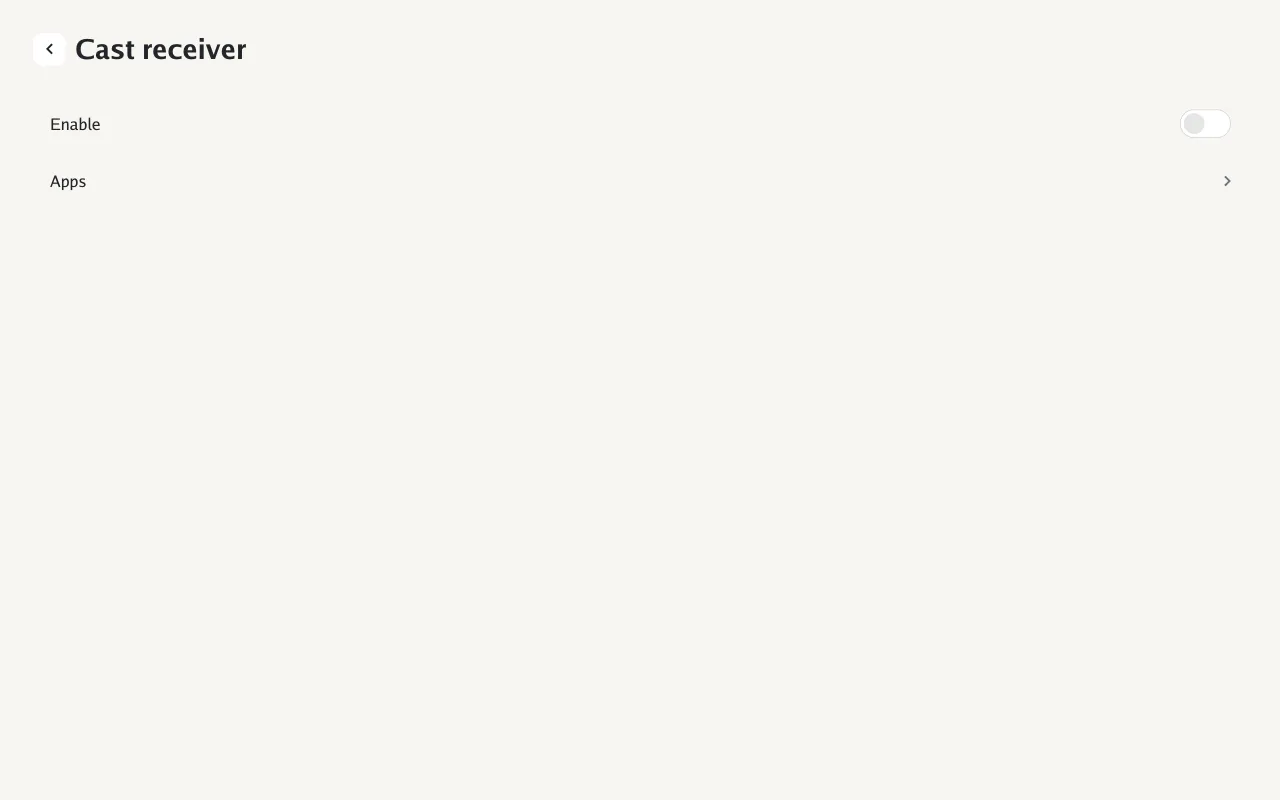
Enable turns the receiver on. Apps has a page per app:
| Page |
Setting |
Choices |
Default |
Entity |
| YouTube |
Connect only when casting |
Always connected, or only while something is casting |
Always |
select.<device>_playback_youtube_lounge |
| YouTube |
Skip segments |
SponsorBlock categories: sponsor, self-promotion, interaction reminder, intro, outro, preview, hook, non-music section, filler |
Sponsor |
text.<device>_playback_youtube_sponsorblock_categories |
| YouTube |
Live delay |
4–60 seconds behind live |
10 s |
number.<device>_playback_youtube_live_delay |
| Prime Video |
Persistent registration |
Keep the first registration for every cast, across restarts too |
Off |
switch.<device>_playback_prime_video_persistent_registration |
| Prime Video |
Reset registration |
Forget the registration. Shows whether one is saved |
|
— |
| Prime Video |
Skip intro |
Skip Amazon’s leading intro |
Off |
switch.<device>_playback_prime_video_skip_intro |
| Setting |
What it does |
Default |
Entity |
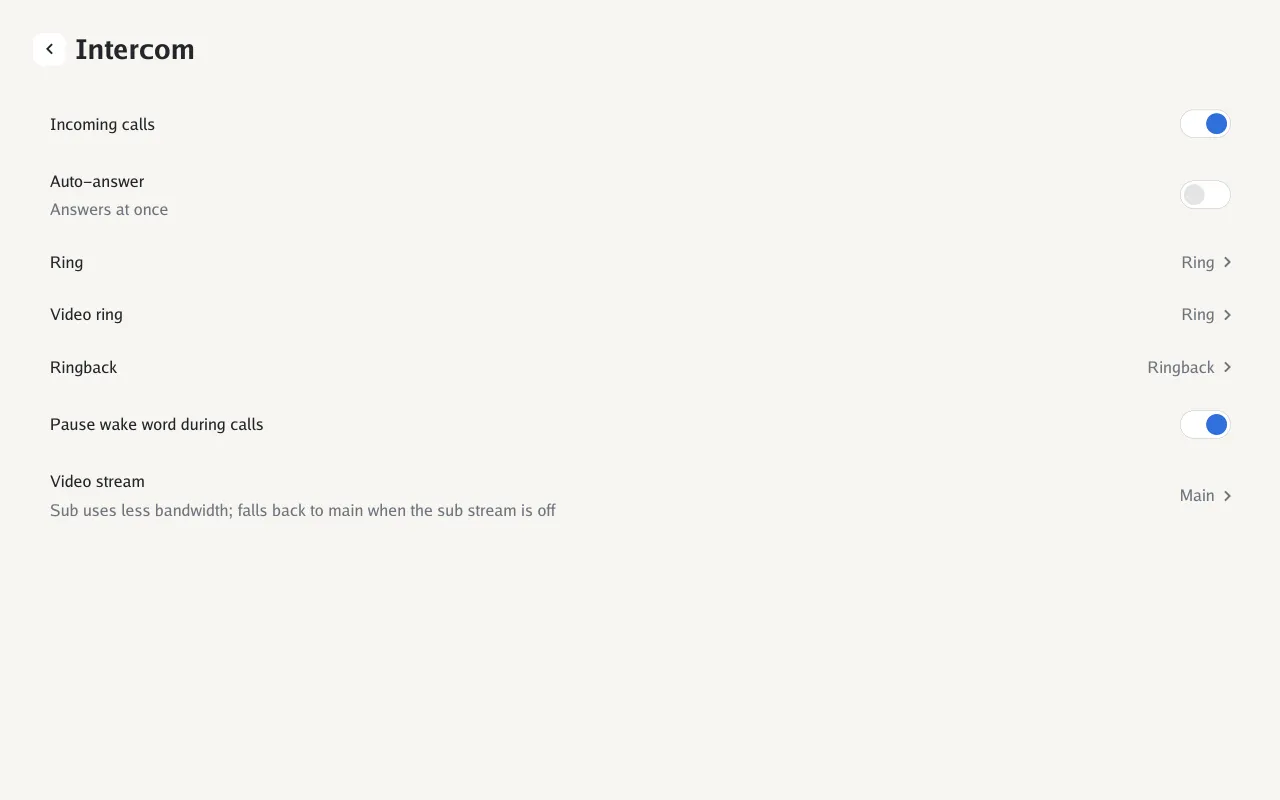
| Incoming calls |
Accept calls at all |
On |
switch.<device>_incoming_calls |
| Receive broadcasts |
Play broadcasts from other devices |
On |
switch.<device>_receive_broadcasts |
| Auto-answer |
Answer calls without a tap |
Off |
switch.<device>_auto_answer_calls |
| Answer from |
Auto-answer Everyone or only the Selected devices |
Everyone |
select.<device>_auto_answer_from |
| Panels |
The devices auto-answer accepts, when Answer from is Selected |
|
text.<device>_auto_answer_panels |
| Users |
The Home Assistant users auto-answer accepts, when Answer from is Selected |
|
text.<device>_auto_answer_users |
| Auto-answer API calls |
Auto-answer calls from the web page, when Answer from is Selected |
Off |
switch.<device>_auto_answer_api_calls |
| Auto-answer with camera on |
Start auto-answered calls with video |
Off |
switch.<device>_auto_answer_with_camera_on |
| Ring, Video ring, Ringback |
The sounds for an audio call, a video call, and while you wait |
Ring, Ring, Ringback |
select.<device>_ring_tone, select.<device>_video_ring_tone, select.<device>_ringback_tone |
| Pause wake word during calls |
Don’t listen for the wake word on a call |
On |
switch.<device>_pause_wake_word_during_calls |
| Video stream |
Send the camera’s main or sub stream |
Main |
select.<device>_call_video_stream |
Video stream isn’t on the Echos; calls send the main stream.
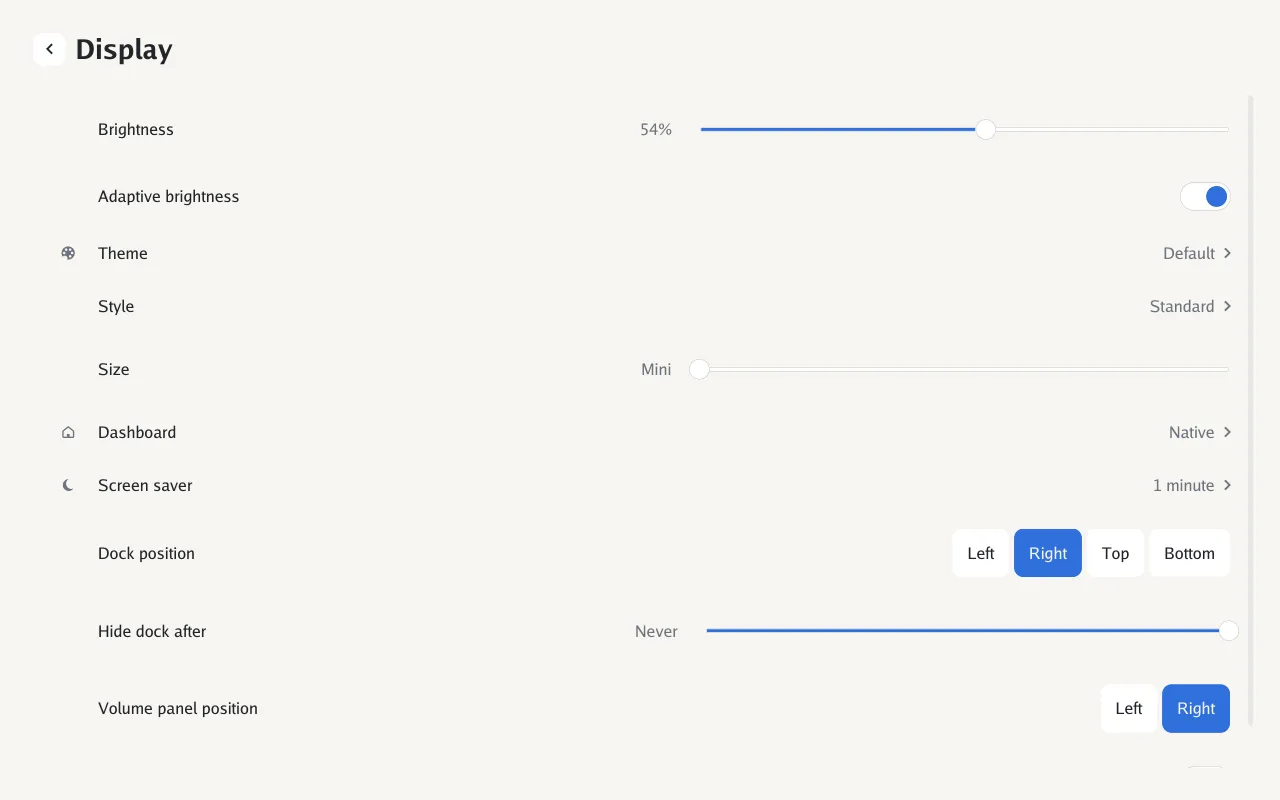
| Setting |
What it does |
Choices |
Default |
Entity |
| Brightness |
Screen brightness |
0–100 % |
70 % |
number.<device>_screen_brightness |
| Adaptive brightness |
Follow the room’s light |
|
On |
switch.<device>_screen_auto_brightness |
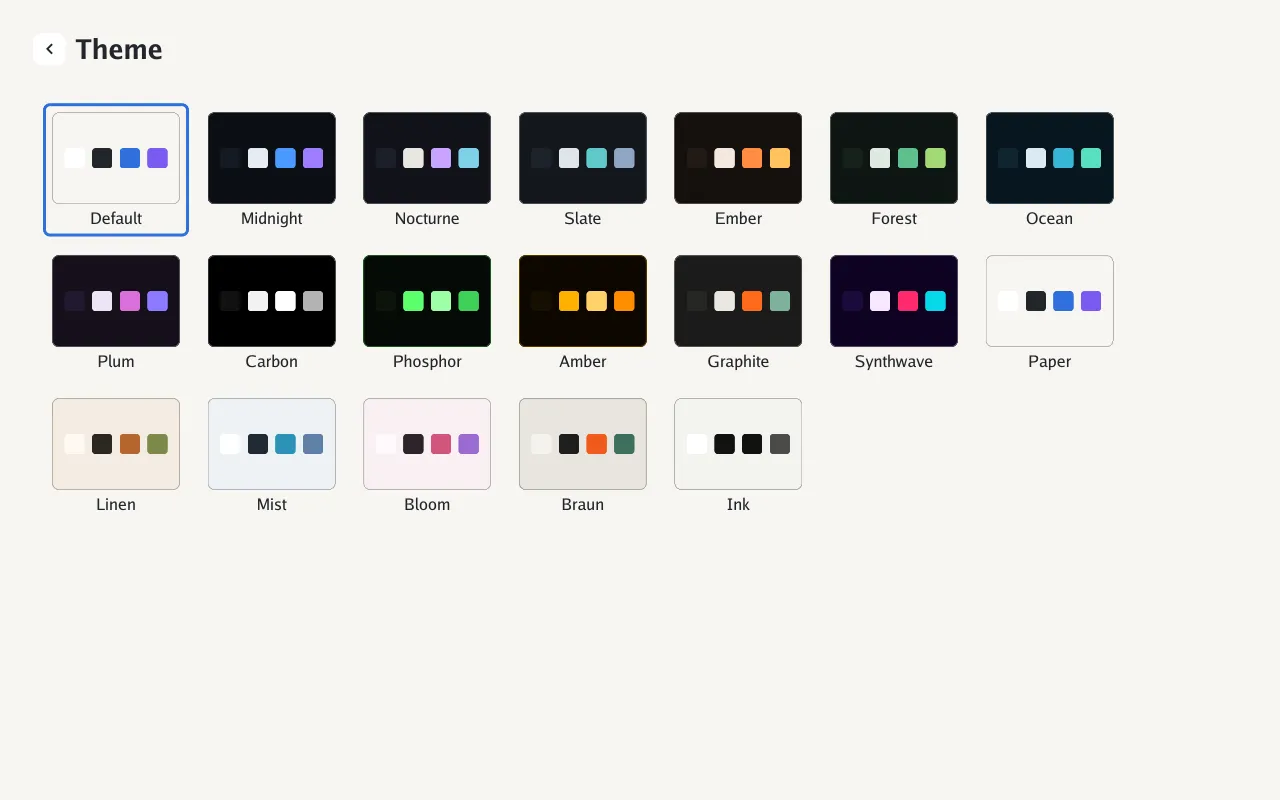
| Theme → |
Color theme (Styles and themes) |
Default, 18 themes and Custom |
Default |
select.<device>_screen_theme |
| Custom colors |
The custom theme’s Background, Cards, Text, Secondary text, Accent and Second accent (Custom theme) |
#rrggbb |
Paper’s colors |
text.<device>_screen_custom_theme_background, text.<device>_screen_custom_theme_cards, text.<device>_screen_custom_theme_text, text.<device>_screen_custom_theme_secondary_text, text.<device>_screen_custom_theme_accent, text.<device>_screen_custom_theme_second_accent |
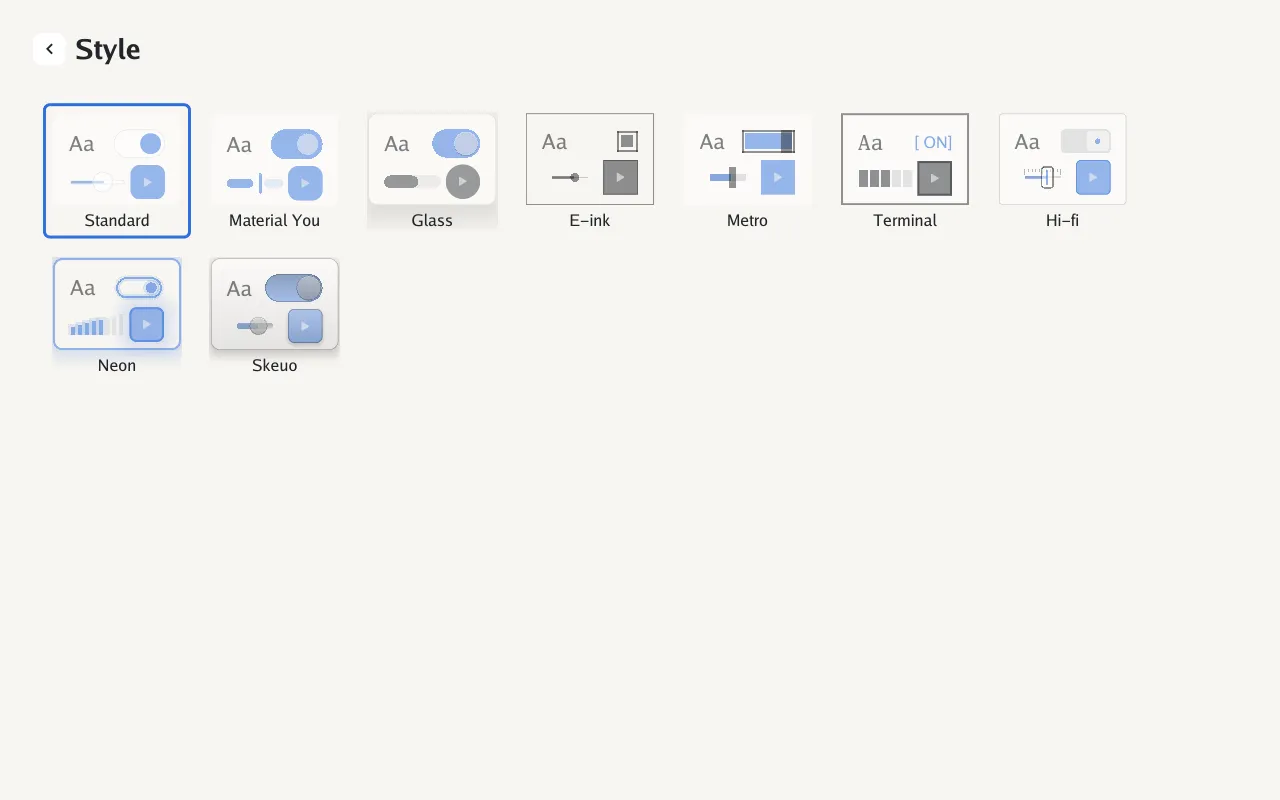
| Style → |
How controls are drawn |
Standard, Material You, Glass, E-ink, Metro, Terminal, Hi-fi, Neon, Skeuo |
Standard |
select.<device>_screen_style |
| Size |
How big everything is |
Mini, Compact, Medium, Large, Extra large |
Mini |
select.<device>_screen_size |
| Dashboard → |
Below |
|
|
|
| Screen saver → |
Below |
|
|
|
| Dock position |
Edge the dock sits on |
Left, Right, Top, Bottom |
Right |
select.<device>_screen_dock_location |
| Hide dock after |
Slide the dock away when untouched |
5, 10, 15, 30 s, 1 min, Never |
Never |
select.<device>_screen_hide_dock_after |
| Volume panel position |
Side the volume panel slides in from |
Left, Right |
Right |
— |
| Privacy indicators |
Show marks when the microphone is muted or the camera covered |
|
On |
switch.<device>_screen_privacy_marks |
| Setting |
What it does |
Choices |
Default |
Entity |
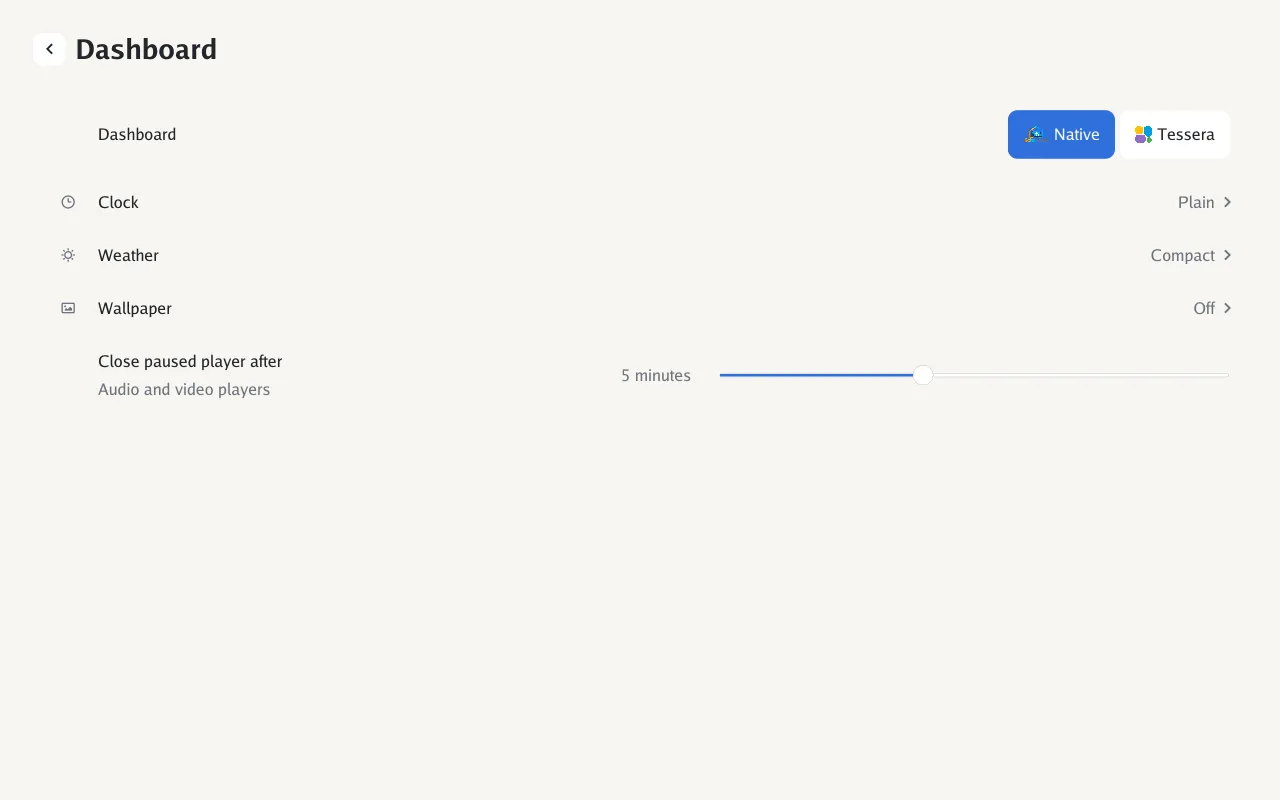
| Dashboard |
The native dashboard or Tessera. Shown when home control is on and Home Assistant actions are allowed |
Native, Tessera |
Native |
— |
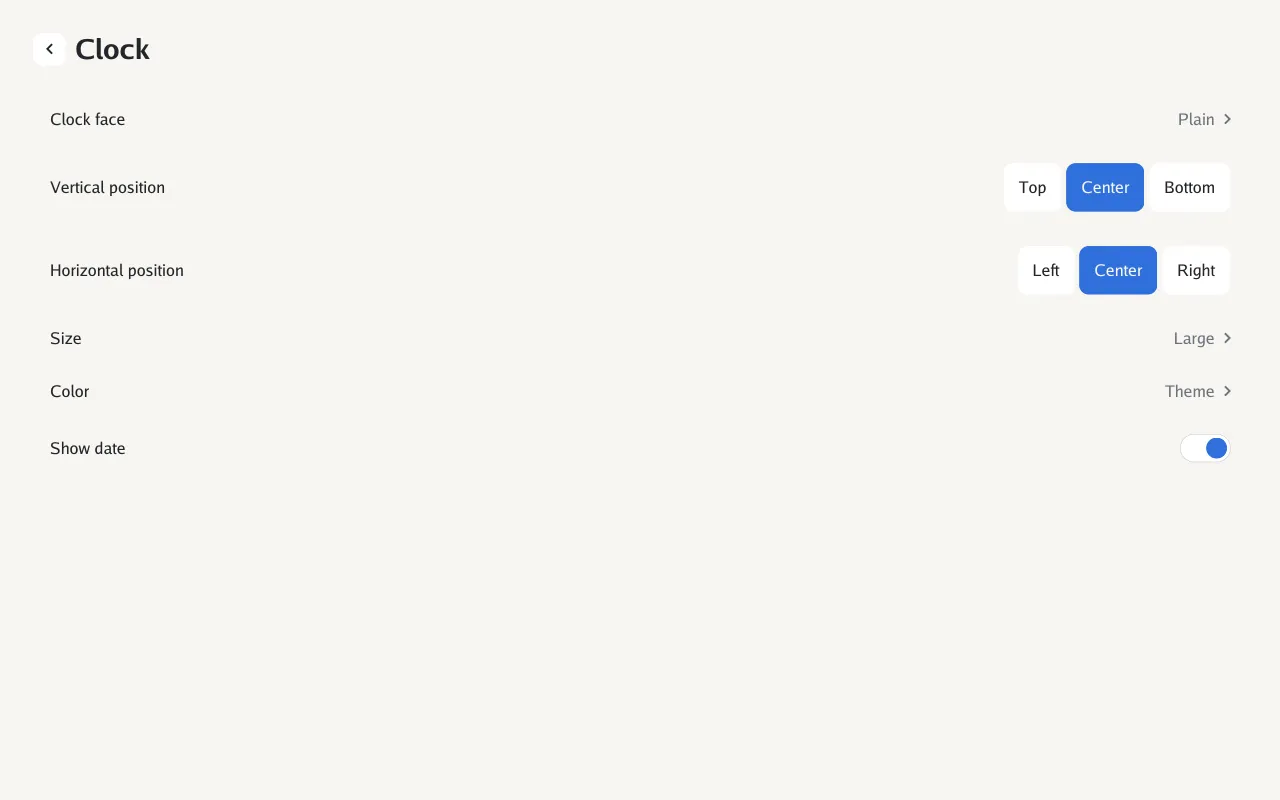
| Clock → |
Face, placement, size, color, date (below) |
|
|
|
| Weather → |
The weather card (below) |
|
|
|
| Wallpaper → |
A photo behind the dashboard (Photos and wallpaper) |
|
|
|
| Close paused player after |
Close the player card when paused this long |
1, 3, 5, 10, 15 min, Never |
5 min |
select.<device>_screen_close_paused_player_after |
| Setting |
Choices |
Default |
Entity |
| Clock face |
Plain, Stack, Cards, Analog, Analog seconds, Segments, Words, Overlap |
Plain |
select.<device>_screen_clock_face |
| Vertical position |
Top, Center, Bottom |
Center |
select.<device>_screen_clock_vertical_position |
| Horizontal position |
Left, Center, Right |
Center |
select.<device>_screen_clock_horizontal_position |
| Size |
Nano, Micro, Mini, Small, Medium, Large |
Large |
select.<device>_screen_clock_size |
| Color |
Theme, Amber, Red, Green, Cyan, Blue, Violet, Pink |
Theme |
select.<device>_screen_clock_color |
| Show date |
|
On |
switch.<device>_screen_clock_date |
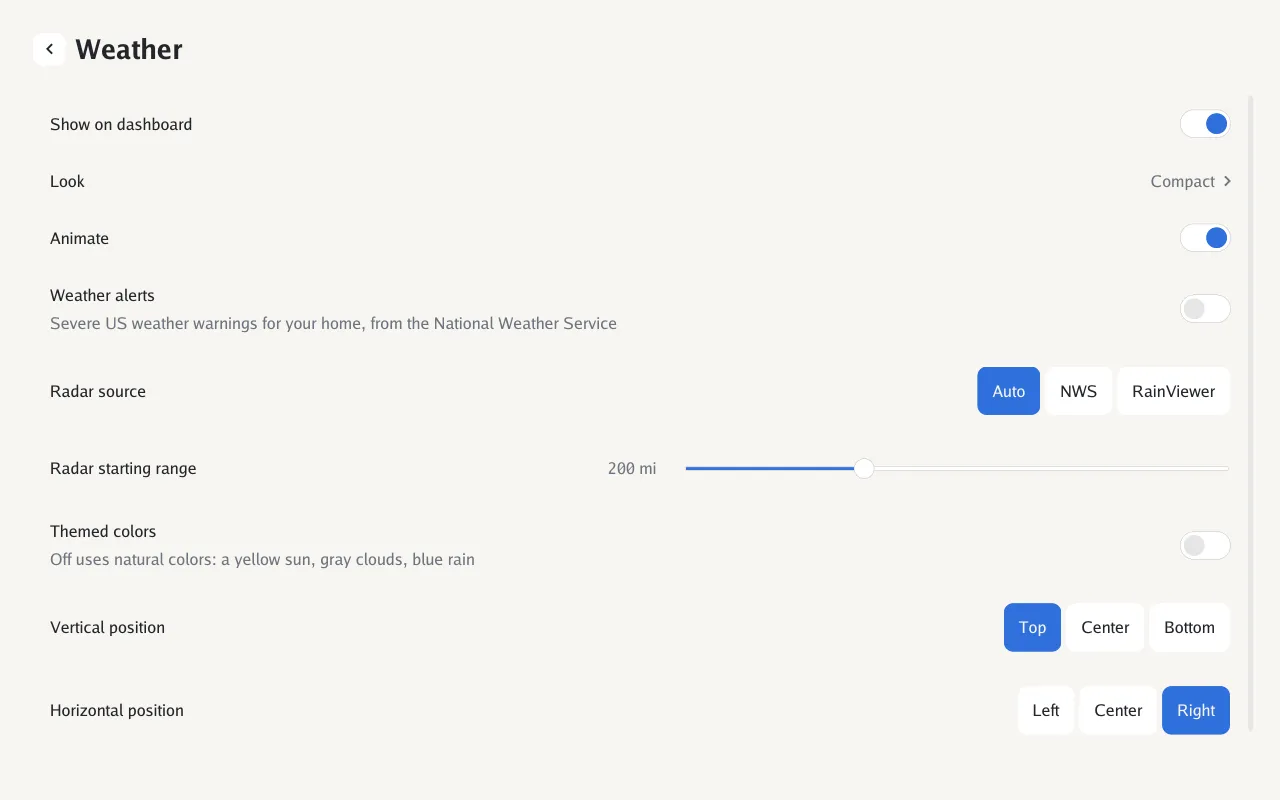
The card needs a weather entity, picked under Home control → Weather.
| Setting |
What it does |
Choices |
Default |
Entity |
| Show on dashboard |
|
|
On |
switch.<device>_screen_weather_on_dashboard |
| Look |
|
Compact, Stack, Icon, Words, Card, Detail |
Compact |
select.<device>_screen_dashboard_weather_look |
| Animate |
Animated weather icons and backgrounds |
|
On |
switch.<device>_screen_animate_dashboard_weather |
| Weather alerts |
Severe and extreme US warnings from the National Weather Service replace the card until dismissed |
|
Off |
switch.<device>_screen_weather_alerts |
| Radar source |
Where the Radar app gets its images |
Auto, NWS, RainViewer |
Auto |
select.<device>_screen_radar_source |
| Radar starting range |
The radar’s first zoom |
50, 100, 200, 300, 400, 600, 800 mi |
200 mi |
select.<device>_screen_radar_starting_range |
| Themed colors |
Use the theme’s colors instead of weather colors |
|
Off |
switch.<device>_screen_themed_dashboard_weather_colors |
| Vertical position, Horizontal position, Size |
Where the card sits |
Top/Center/Bottom, Left/Center/Right, Nano–Large |
Top, Right, Small |
select.<device>_screen_dashboard_weather_vertical_position, select.<device>_screen_dashboard_weather_horizontal_position, select.<device>_screen_dashboard_weather_size |
| Setting |
What it does |
Choices |
Default |
Entity |
| Show wallpaper |
A photo from Immich behind the dashboard |
|
Off |
switch.<device>_screen_poster |
| Change now |
Show the next photo |
|
|
button.<device>_screen_next_poster (button) |
| Change every |
|
Never, On each wake, Hourly, Daily |
Hourly |
select.<device>_screen_poster_changes |
Where the photos come from is set in Home Assistant; see Photos and wallpaper.
| Setting |
What it does |
Choices |
Default |
Entity |
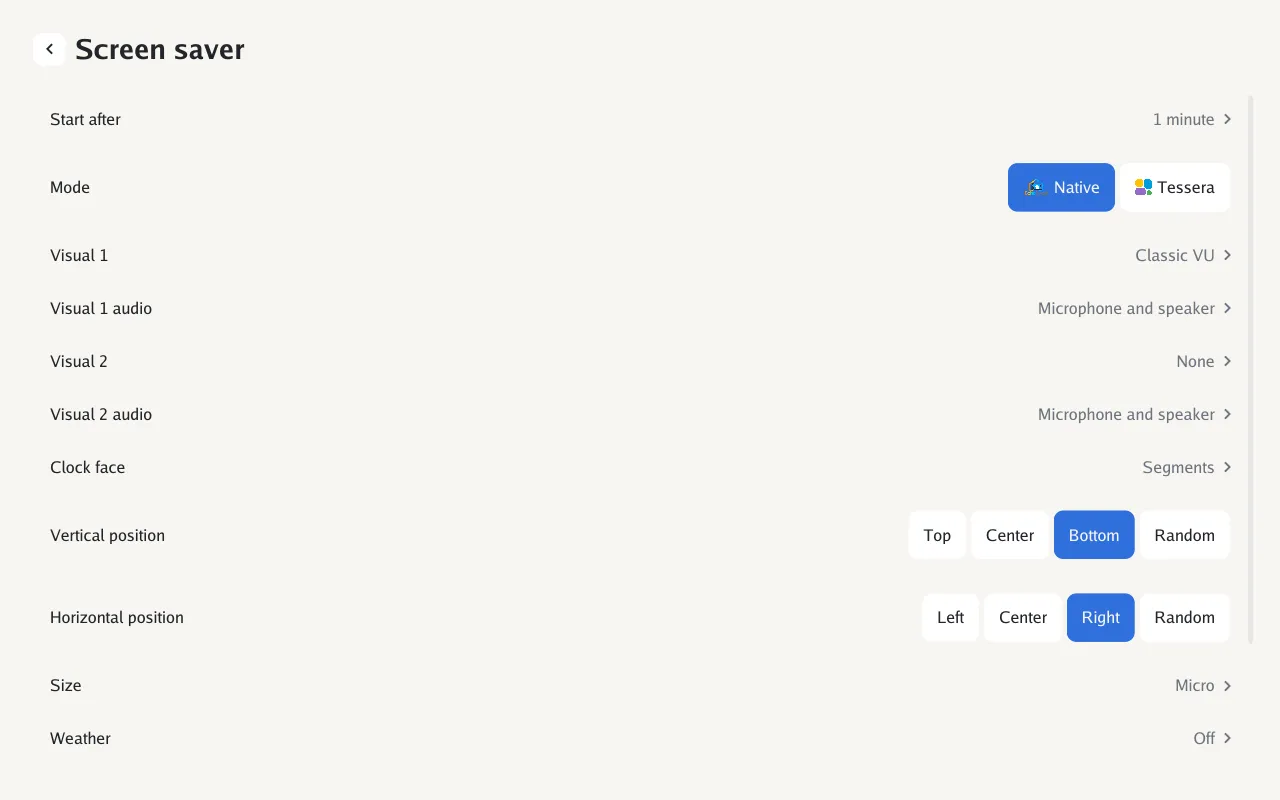
| Start after |
Idle time before the screen saver |
30 s, 1, 2, 5, 15 min, Never |
1 min |
select.<device>_screen_idle_screen_after |
| Mode |
The native screen saver or a Tessera page. Shown when home control is on and Home Assistant actions are allowed |
Native, Tessera |
Native |
select.<device>_screen_screen_saver_mode |
| Visual 1, Visual 2 |
Up to two visuals, drawn together |
None or any of the 33 |
None |
select.<device>_screen_idle_visual_1, select.<device>_screen_idle_visual_2 |
| Visual 1 audio, Visual 2 audio |
What each visual reacts to |
Microphone and speaker, Microphone, Speaker |
Both |
select.<device>_screen_idle_visual_1_listens_to, select.<device>_screen_idle_visual_2_listens_to |
| Clock face |
|
None or a face |
Plain |
select.<device>_screen_idle_clock_face |
| Vertical position, Horizontal position |
|
Top/Center/Bottom or Random; Left/Center/Right or Random |
Random, Random |
select.<device>_screen_idle_clock_vertical_position, select.<device>_screen_idle_clock_horizontal_position |
| Size |
|
Nano–Large |
Large |
select.<device>_screen_idle_clock_size |
| Weather → |
The screen saver’s own weather card: show on screen saver (off by default), look, animate, themed colors, placement, and the alert and radar settings above |
|
|
switch.<device>_screen_weather_on_screen_saver, weather_saver_* |
| Visual label |
Text some visuals show, up to 32 characters |
|
EchoLocal |
text.<device>_screen_visual_label |
| Night mode → |
Below |
|
|
|
| Setting |
What it does |
Choices |
Default |
Entity |
| Mode |
What happens when the room is dark |
Nothing, Dim, Dim to a clock, Turn off the screen |
Dim to a clock |
select.<device>_screen_night_mode |
| Darker than |
Light level that counts as dark |
0–100 lx |
5 lx |
number.<device>_screen_night_mode_below |
| Starts after |
How long it has to stay dark |
1, 5, 15, 30 min |
5 min |
select.<device>_screen_night_mode_after |
Apart from Screen saver (idle_saver) and the Cameras settings, none of these are Home Assistant
entities.
| Setting |
What it does |
Default |
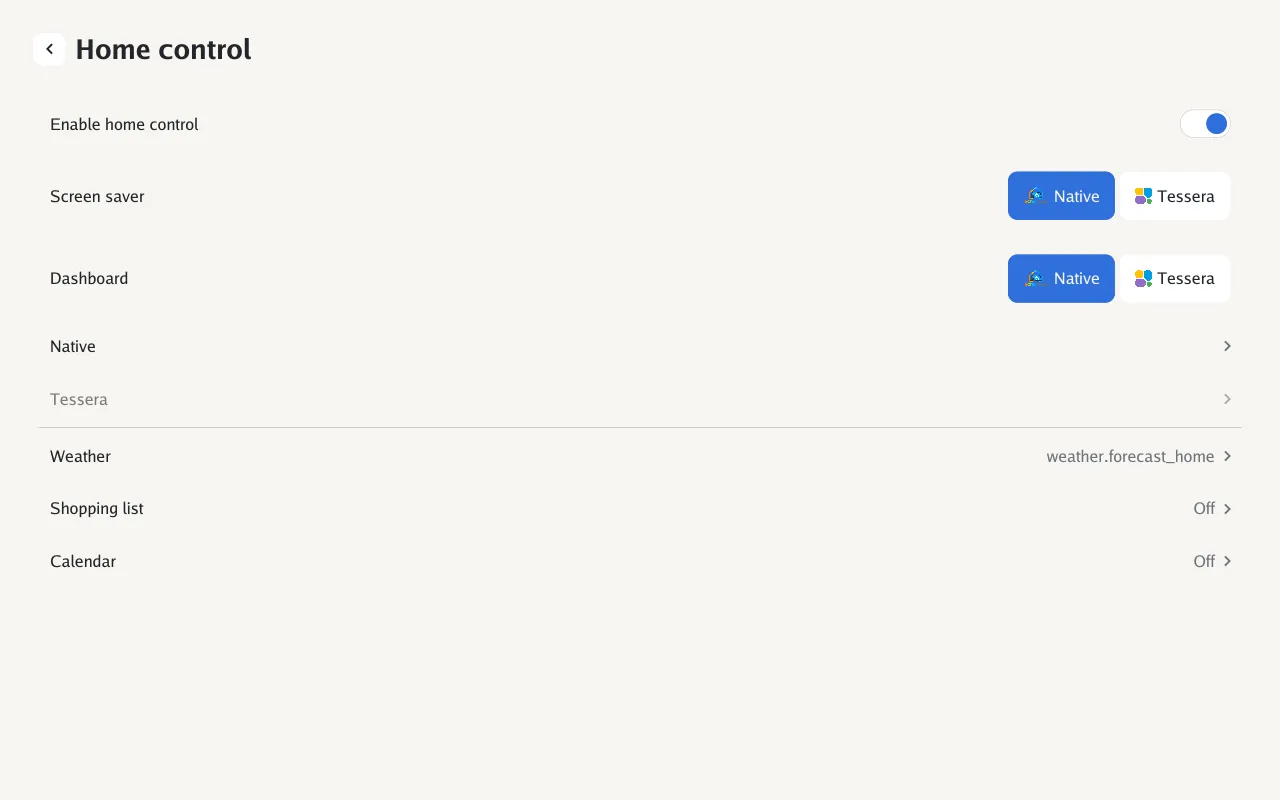
| Enable home control |
Show your lights and switches on the device |
On |
| Screen saver, Dashboard |
Native or Tessera, as above |
Native |
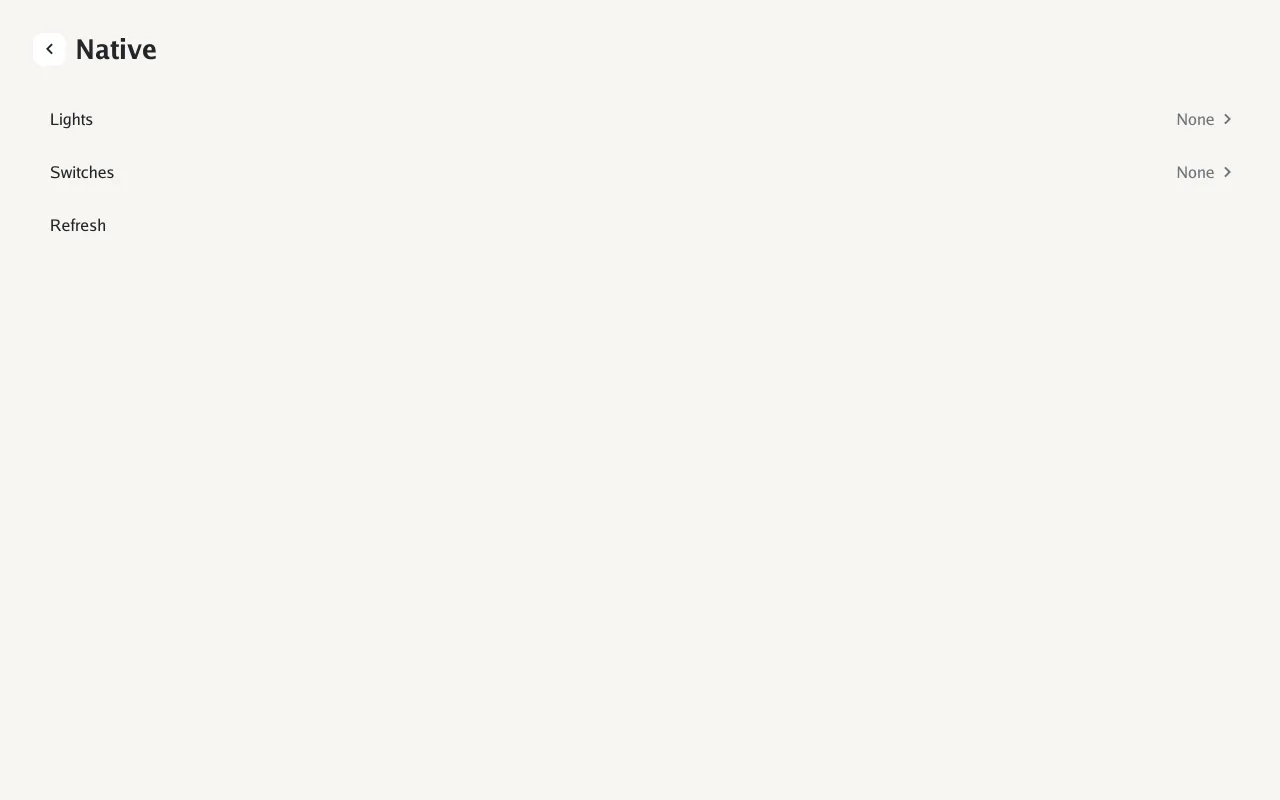
| Native → Lights, Switches |
Enable, then Select devices by label or by hand, Group by area from N devices (0–5, default 2), and Include switches in the lights view |
Off |
| Tessera → |
Tiles along the long and short side (1–12), go back to the home page after the screen saver, enable landscape and portrait (Tessera) |
4 × 2 on the Show 5, 6 × 4 on the Show 8 |
| Weather |
The Home Assistant weather entity for the weather card and alerts |
None |
| Shopping list |
A Home Assistant to-do list, and Show completed items |
None, Off |
| Calendar |
Calendars to show, and Days to show: 3, 7 or 14 |
None, 7 |
| Cameras |
The Cameras app: Dashboard tab (switch.<device>_dashboard_tab), which cameras, Thumbnail size (number.<device>_thumbnail_size), Refresh (number.<device>_refresh), Auto paginate (number.<device>_auto_paginate) and Home Assistant URL (text.<device>_home_assistant_url) |
Off, all cameras, 3, 5 s, Off, empty |
| Setting |
What it does |
Default |
Entity |
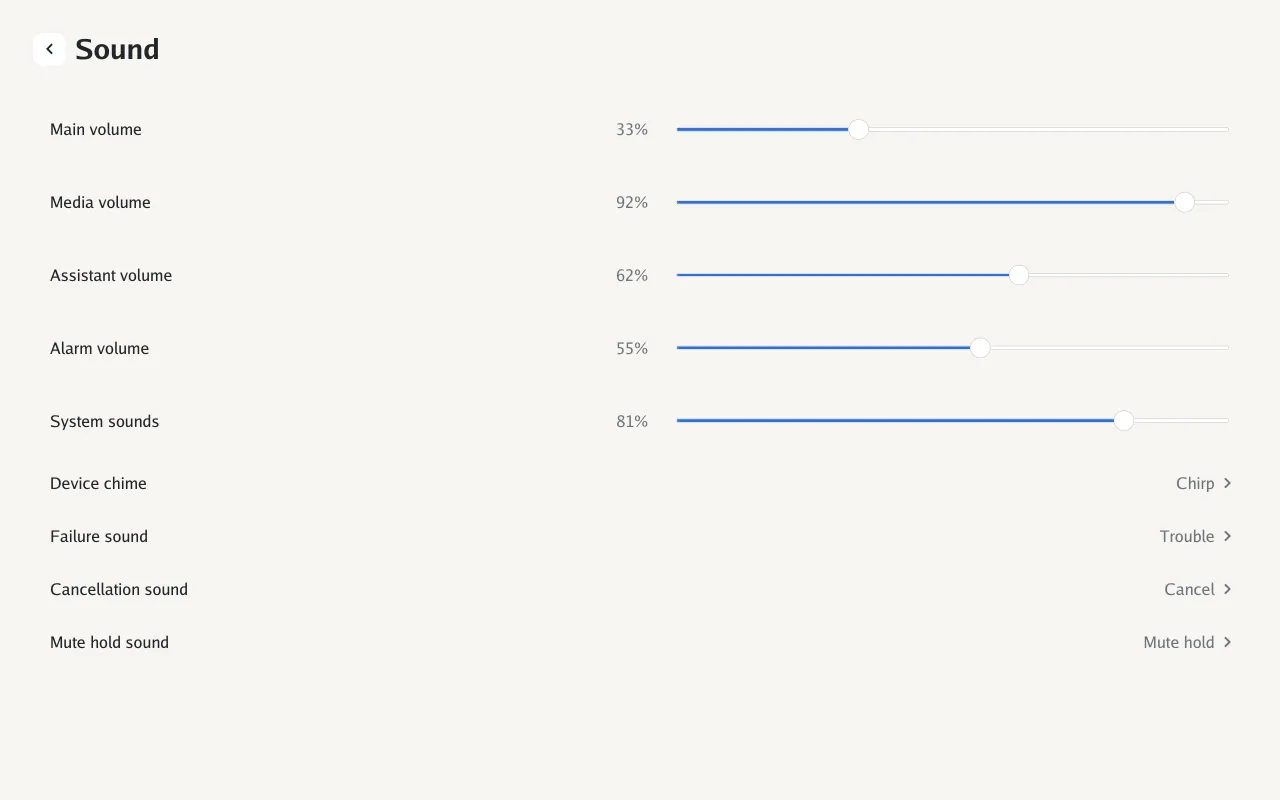
| Main volume |
The speaker’s volume, in 30 steps |
50 % |
number.<device>_playback_main_volume |
| Media volume, Assistant volume, Alarm volume, System sounds |
Each sound’s level within the main volume |
100 % |
number.<device>_playback_media_volume, number.<device>_playback_voice_volume, number.<device>_playback_alerts_volume, number.<device>_playback_feedback_volume |
| Volume buttons |
What the volume buttons change: What’s playing, or Main volume (Volume buttons) |
What’s playing |
select.<device>_playback_volume_buttons |
| Device chime |
The sound for wake and confirmations. None silences the failure and cancellation sounds too |
Chirp |
select.<device>_playback_device_chime |
| Failure sound |
When a request fails |
Trouble |
select.<device>_playback_failure_sound |
| Cancellation sound |
When a request is cancelled |
Cancel |
select.<device>_playback_cancellation_sound |
| Mute hold sound |
When the mute button is held |
Mute hold |
select.<device>_playback_mute_hold_sound |
Device chime offers None, Chirp, Ding, Rise and any custom tones you’ve
uploaded; each of the other sounds adds its own default tone to that list.
| Setting |
What it does |
Choices |
Default |
Entity |
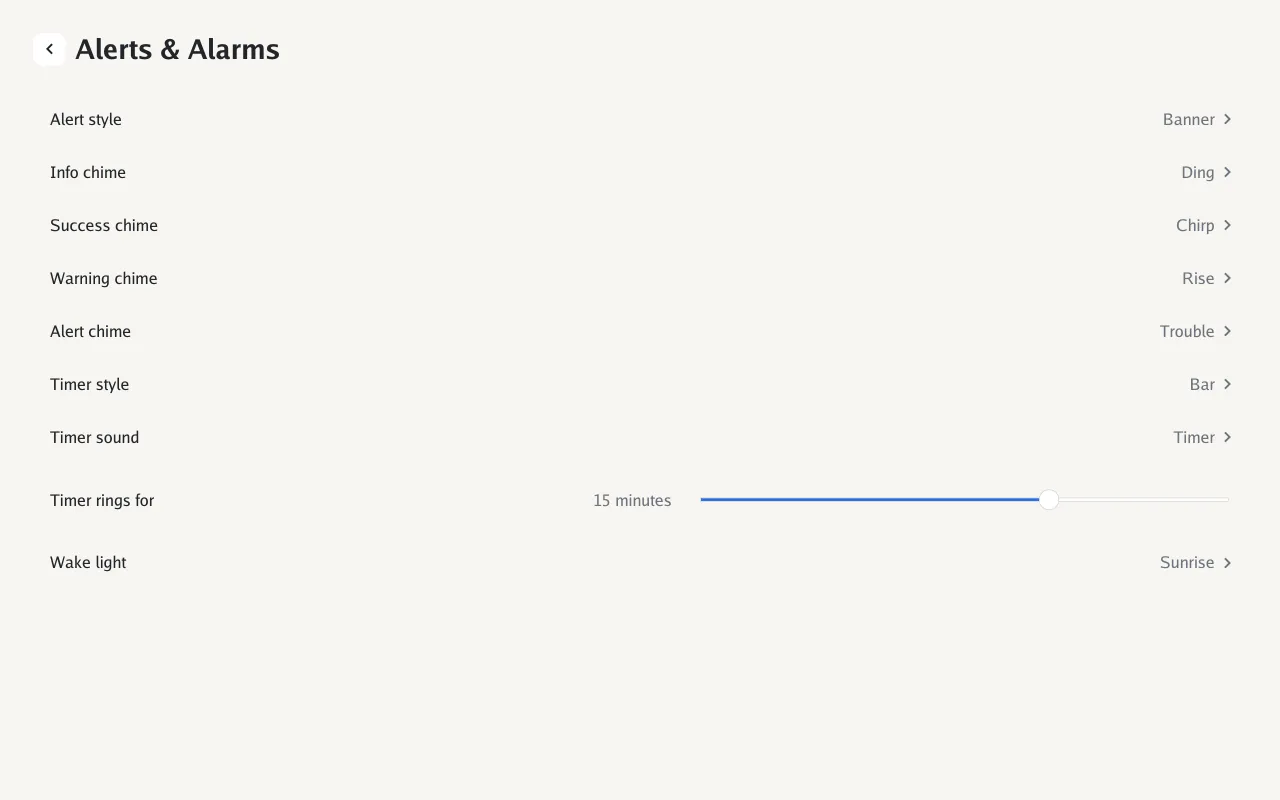
| Alert style |
How messages appear |
Banner, Card, Toast, Full screen |
Banner |
select.<device>_screen_alert_style |
| Info, Success, Warning, Alert chime |
The sound for each message tone |
Chimes and custom tones |
Ding, Chirp, Rise, Trouble |
select.<device>_playback_info_chime, select.<device>_playback_success_chime, select.<device>_playback_warning_chime, select.<device>_playback_alert_chime |
| Timer style |
How timers appear |
Bar, Banner, Dial, Full screen, Clock face, Corner |
Bar |
select.<device>_screen_timer_style |
| Timer sound |
|
Chimes and custom tones |
Timer |
select.<device>_playback_timer_sound |
| Timer rings for |
How long a finished timer or an alarm rings |
1, 5, 15, 30 min |
15 min |
select.<device>_playback_timer_rings_for |
| Wake light |
The screen’s color during an alarm’s wake light |
Sunrise, White, Ember |
Sunrise |
select.<device>_playback_wake_light |
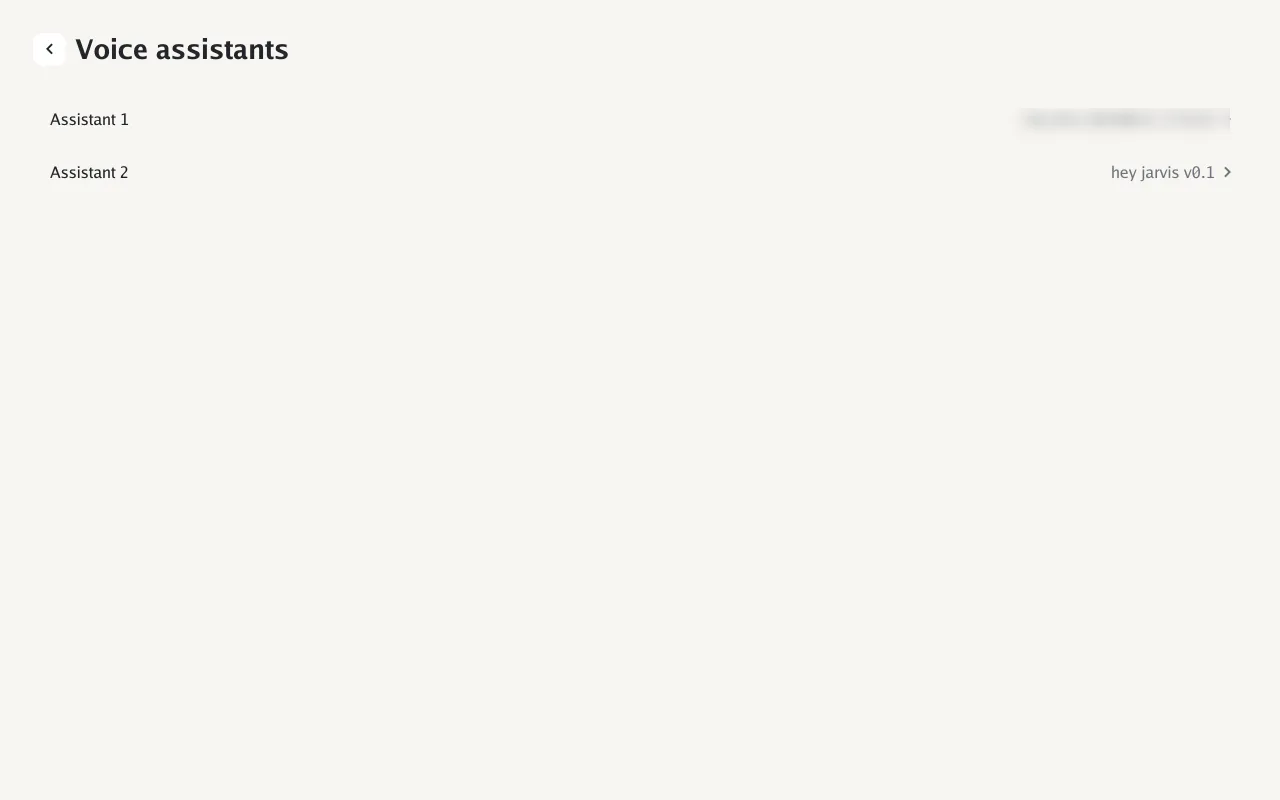
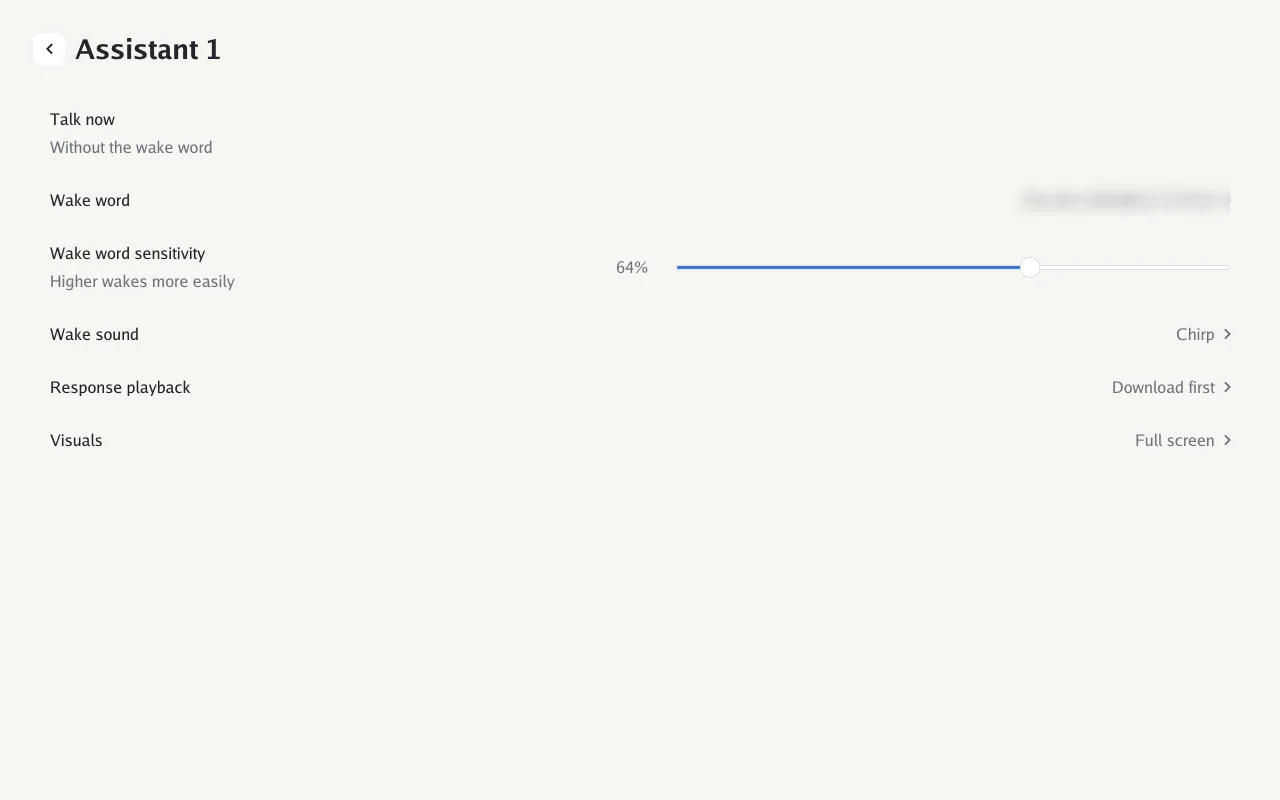
A page per assistant (Voice assistants):
| Setting |
What it does |
| Talk now |
Start a conversation without the wake word |
| Wake word |
Pick from the wake words in Home Assistant. Needs Home Assistant actions allowed; otherwise pick it in Home Assistant |
| Wake word sensitivity |
Slide up to wake more easily, with more false wakes (in Home Assistant, a threshold from 0.99 down to 0.5; default 0.85) |
| Wake sound |
The sound when the wake word is heard |
| Response playback |
Download the reply first, or stream it as it arrives |
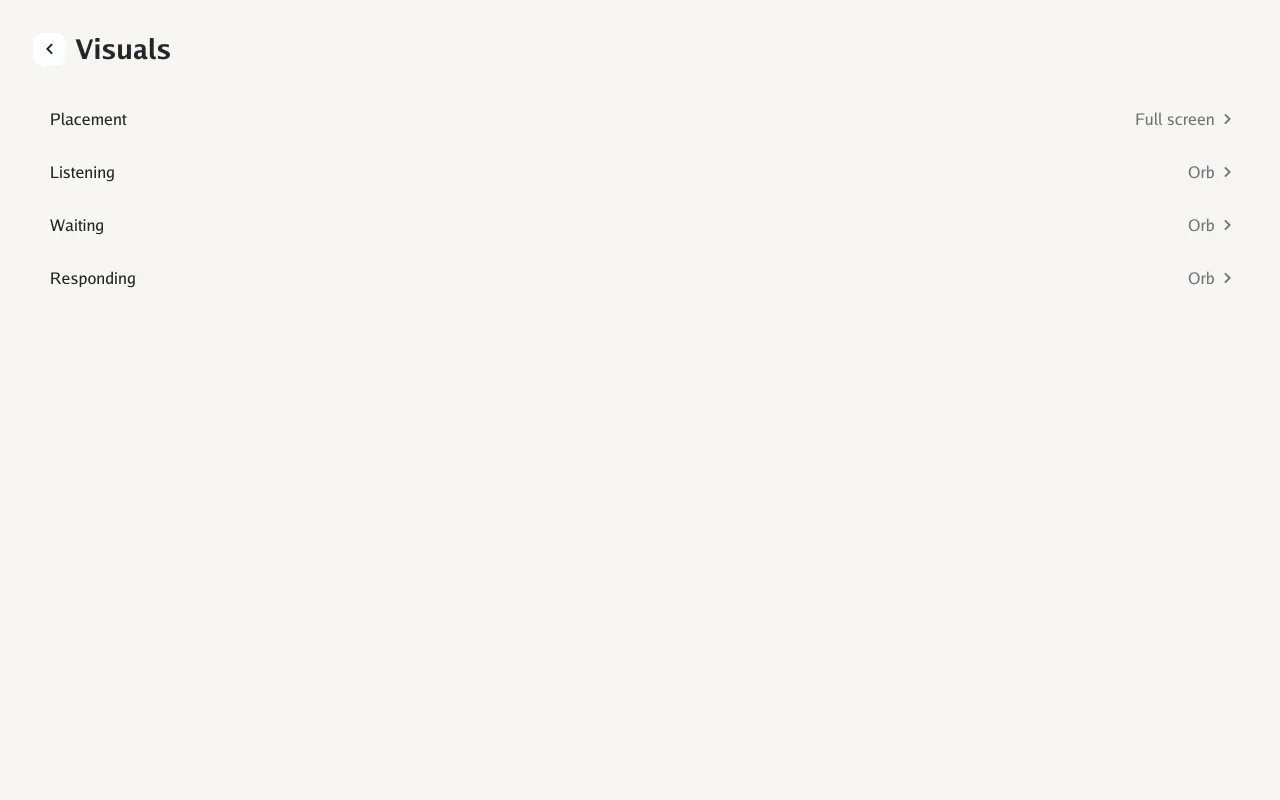
| Visuals |
Where the assistant’s visual goes (Default, Full screen, In the panel) and a visual for Listening, Waiting and Responding |
Timing, follow-up and recordings are in Home Assistant.
What you can say besides talking to the assistant (Voice triggers).
When the EchoLocal integration is missing or needs an update, a row at the top says so and shows a
code to scan.
| Setting |
What it does |
Default |
Entity |
| All actions |
Actions said to an assistant |
On |
switch.<device>_voice_triggers_all_actions |
| Call a device |
“Call the kitchen” |
On |
switch.<device>_voice_triggers_call_a_device |
| Broadcast a message |
“Broadcast dinner is ready” |
On |
switch.<device>_voice_triggers_broadcast_a_message |
| All commands |
Commands heard without a wake word |
On |
switch.<device>_voice_triggers_all_commands |
| Radar, Mirror |
“Radar”, “mirror” |
On |
switch.<device>_voice_triggers_radar, switch.<device>_voice_triggers_mirror |
On the Echo Show 5, Show 5 (2nd gen), Show 8 and Show 8 (2nd gen). Camera settings stay on the
device; config sync doesn’t copy them.
| Page |
Setting |
Choices |
Default |
Entity |
| Picture |
Brightness, Contrast, Saturation, Hue |
Low, Medium, High |
Medium |
select.<device>_camera_brightness, select.<device>_camera_contrast, select.<device>_camera_saturation, select.<device>_camera_hue |
| Picture |
Sharpness |
Low, Medium, High |
Medium |
select.<device>_camera_sharpness |
| Picture |
Effect |
None, Mono, Negative, Sepia, Aqua, Whiteboard, Blackboard |
None |
select.<device>_camera_effect |
| Exposure |
Exposure compensation |
−3 to 3 |
0 |
number.<device>_camera_exposure_compensation |
| Exposure |
Scene |
Auto, Portrait, Landscape, Night |
Auto |
select.<device>_camera_scene |
| Exposure |
Anti-banding |
Auto, Off, 50 Hz, 60 Hz |
Auto |
select.<device>_camera_anti_banding |
| Exposure |
ISO |
Auto, 100–1600 |
Auto |
select.<device>_camera_iso |
| Exposure |
Auto frame rate, Frame rate |
15, 20 or 30 fps |
On, 30 |
switch.<device>_camera_auto_frame_rate, number.<device>_camera_frame_rate |
| White Balance |
White balance |
Auto, Incandescent, Fluorescent, Warm fluorescent, Daylight, Cloudy, Twilight, Shade |
Auto |
select.<device>_camera_white_balance |
| Streams |
Main stream, Main resolution |
By device (Camera) |
On, 1280×720 |
switch.<device>_camera_main_stream, select.<device>_camera_main_resolution |
| Streams |
Sub stream, Sub resolution (Show 8 2nd gen) |
960, 768, 640, 480, 320 px wide |
On, 640 |
switch.<device>_camera_sub_stream, select.<device>_camera_sub_resolution |
| Streams |
Keyframe interval |
1–10 s |
2 s |
number.<device>_camera_keyframe_interval |
| Streams |
Quality |
Low, Standard, High |
Standard |
select.<device>_camera_quality |
|
Reset to defaults |
Tap twice |
|
button.<device>_camera_reset_camera_settings (button) |
| Setting |
What it does |
Default |
Entity |
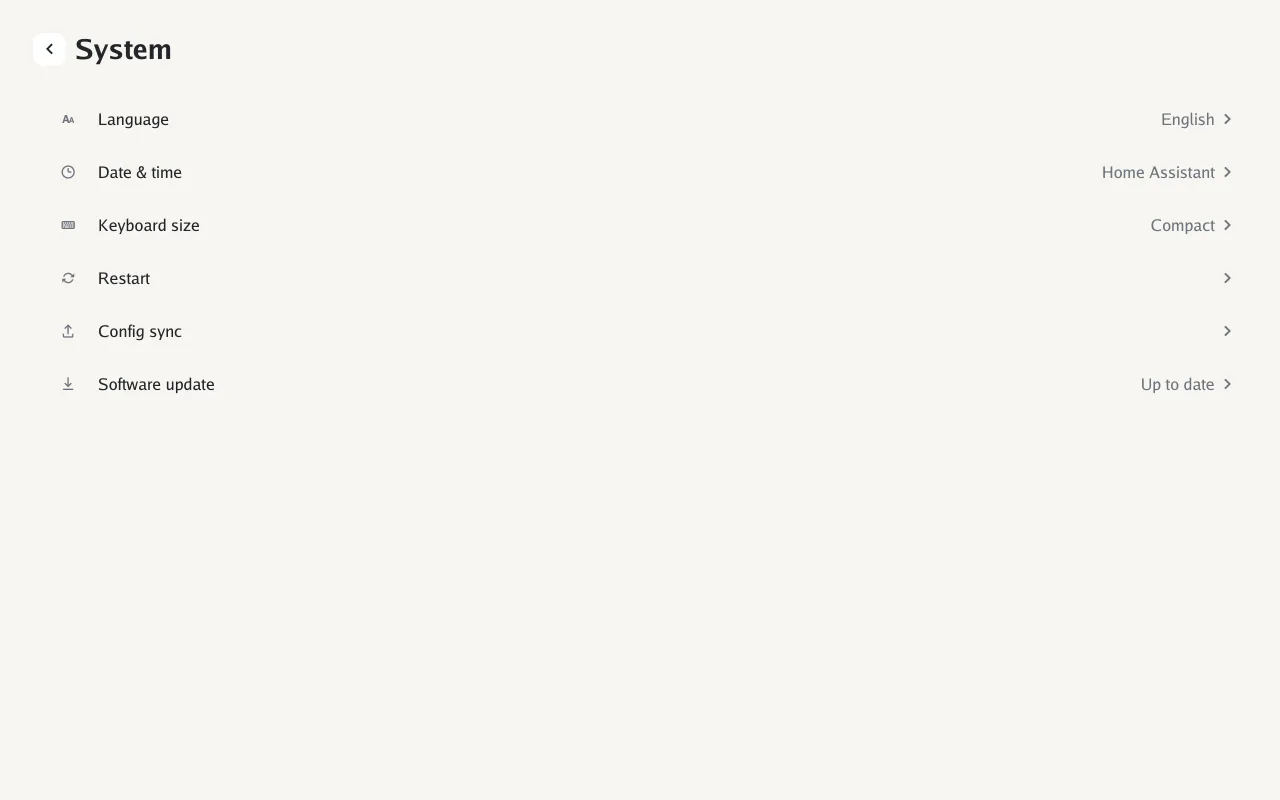
| Language |
English for now |
English |
select.<device>_screen_language |
| Date & time |
Time zone (or follow Home Assistant) and 24-hour format |
24-hour |
select.<device>_time_zone, select.<device>_screen_clock_format |
| Keyboard size |
The on-screen keyboard |
Compact |
select.<device>_screen_keyboard_size |
| Restart |
Restart the app or the whole device |
|
button.<device>_restart (button) |
| Config sync |
Copy settings to or from another device (Configuration) |
|
|
| Software update |
Version, channel (stable or development), check for updates, and Other versions to install a particular one (Updates) |
Stable |
select.<device>_update_channel, update.<device>_firmware, select.<device>_install_version |
| Settings Lock |
A PIN of 4 to 8 digits that opening Settings asks for (below) |
Off |
text.<device>_settings_lock |
| Home key |
Devices with the same key are in one home, for calls and broadcasts (Intercom) |
None |
text.<device>_home_key |
Set PIN asks for a new PIN twice. Once it’s set, the page offers Change PIN and Remove
PIN. After five wrong tries, the next try has to wait 30 seconds, and the wait doubles with every
wrong try after that, up to an hour.
The PIN can also be set from Home Assistant with Settings Lock; clearing it there removes the
lock.
| Setting |
What it does |
Default |
Entity |
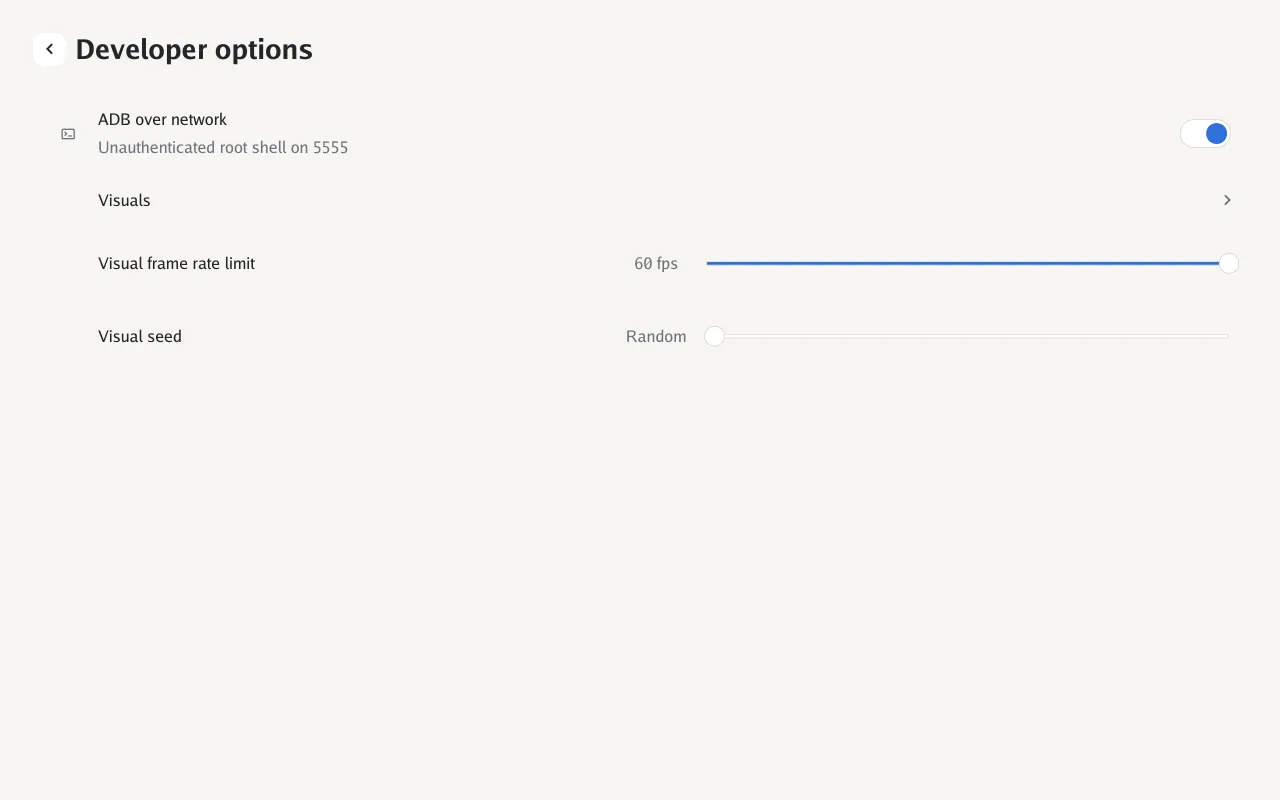
| ADB over network |
An unauthenticated root shell on port 5555. Anyone on your network can use it |
Off |
switch.<device>_remote_adb |
| Visuals |
A full-screen gallery of every visual |
|
select.<device>_screen_visual |
| Visual frame rate limit |
Cap the visuals’ frame rate |
60 |
select.<device>_screen_visual_frame_cap |
| Visual seed |
Fix a visual’s random layout (0 is random) |
0 |
number.<device>_screen_visual_seed |
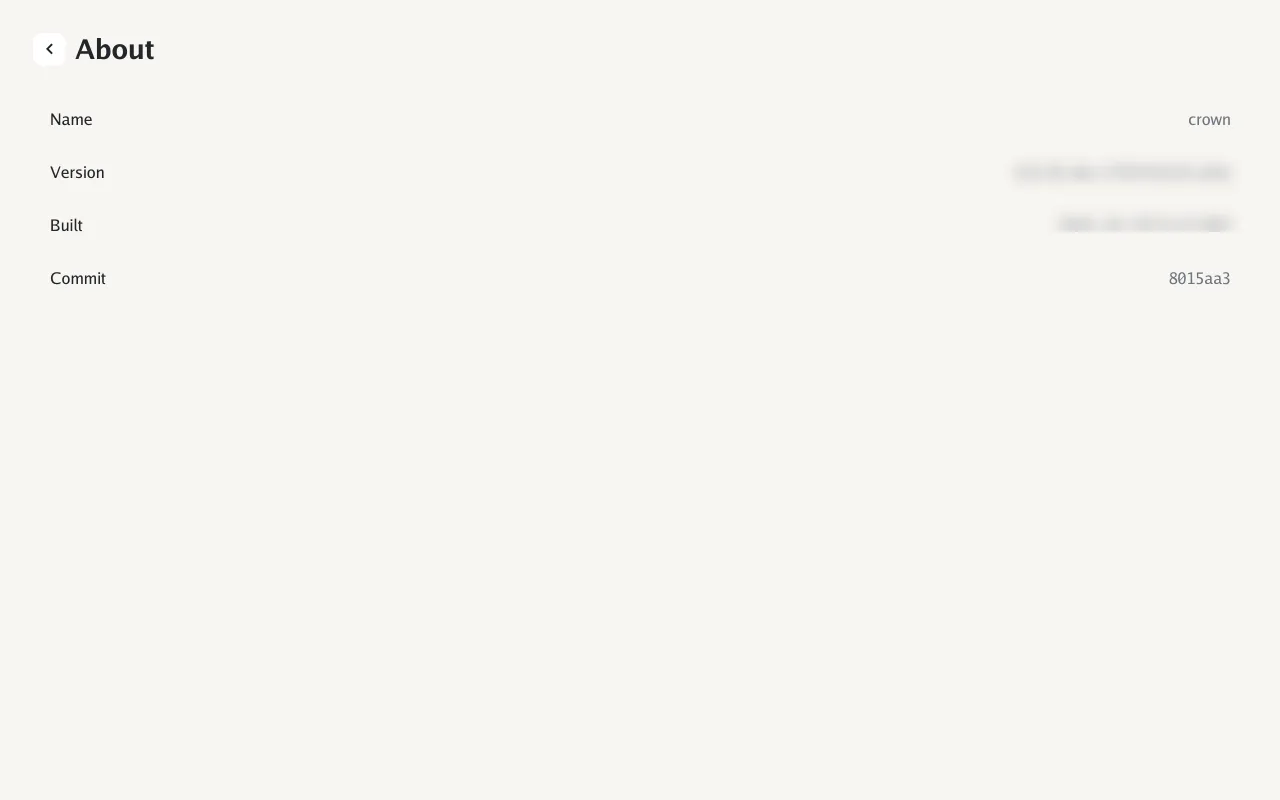
Name, version, build date and commit.