Add it to Home Assistant
EchoLocal speaks the ESPHome native API, so Home Assistant finds it the way it finds any ESPHome device.
Add it
Section titled “Add it”-
In Home Assistant, open Settings → Devices & services. The Echo shows up as a discovered ESPHome device.
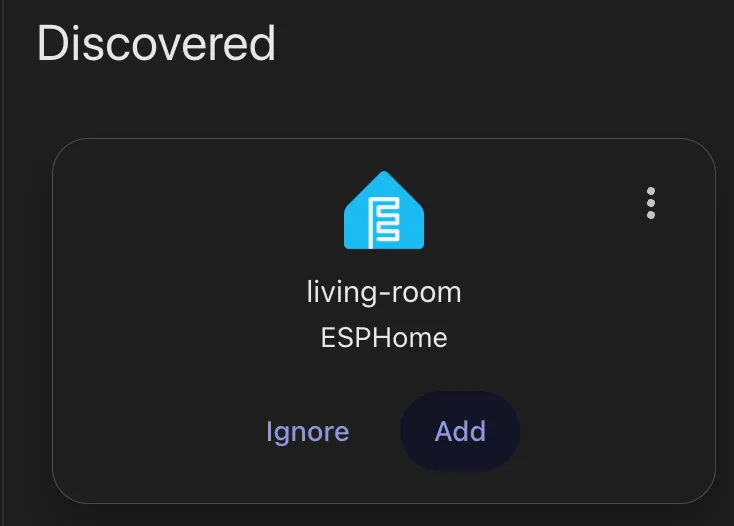
-
Add it, and confirm. No password or key; the Echo and Home Assistant set up the encryption key themselves.
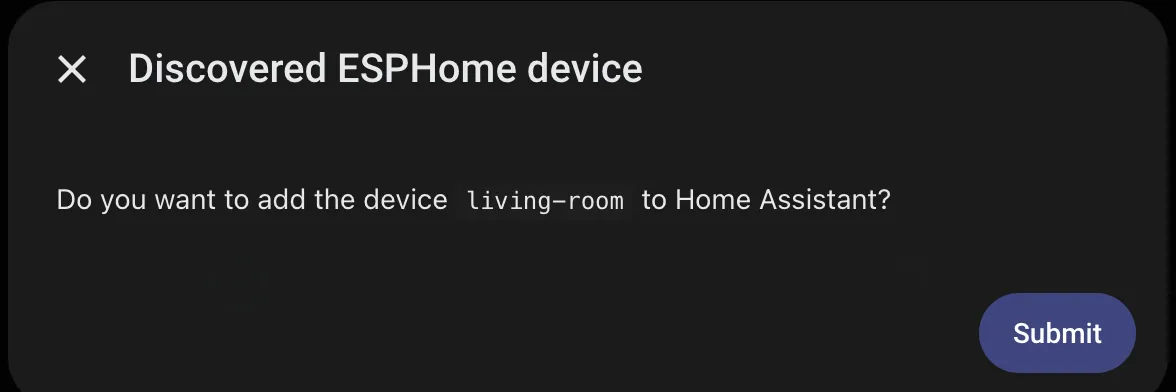
-
Open the ESPHome integration’s options for the device and turn on Allow the device to perform Home Assistant actions. The Echo Shows need it for Tessera, home control and picking wake words on the screen.
In Home Assistant
Section titled “In Home Assistant”The Echo is one device, with its entities split into sub-devices named after it. Anything not listed here, such as the media player, network, Bluetooth, buttons and updates, sits on the main device.
| Sub-device | Contents |
|---|---|
| ring | The light ring and its effects, room reaction, ring while muted, intercom ring |
| microphone | Mute, gain, leveling, echo cancellation, sensitivity, diagnostics |
| voice triggers | Which voice actions and commands are on |
| playback | Now playing, alert sounds, volumes, AirPlay, Sendspin, Chromecast |
| screen | Brightness, theme, dashboard, screen saver, visuals, weather, wallpaper, photos (Echo Show) |
| dashboard | Tessera (Echo Show) |
| camera | Snapshot camera, RTSP, picture settings, vision (Echo Show) |
| assistant 1, assistant 2 | Wake word, pipeline, sensitivity, sounds, timing, recording |
Every entity is listed on Settings in Home Assistant and Settings on the screen.
Encryption key
Section titled “Encryption key”If you installed with ./echolocal install --generate-key, Home Assistant asks for a key. Get it
with:
./echolocal key showNext: the optional EchoLocal integration, which adds a dashboard and a card for every Echo.